Why You Should Be Using the Schoolio Digital Platform for Your Homeschool

Why You Should Be Using the Schoolio Digital Platform for Your Homeschool

Why You Should Be Using the Schoolio Digital Platform for Your Homeschool

In the ever-evolving landscape of education, homeschooling has emerged as a dynamic and effective way to nurture the love of learning in children. However, designing a comprehensive curriculum and ensuring a personalized learning experience can be daunting for homeschooling parents. Enter the Schoolio Digital Platform – an all-in-one, grade 1-8 learning solution that aims to revolutionize homeschooling by providing unparalleled customization, engagement, and convenience. In this blog, we will explore why you should be using the Schoolio Digital Platform for your homeschool. And how it will transform your homeschooling journey and create a seamless, enriching experience for your young learners.

Transform Your Homeschool:

When it comes to homeschooling, every parent seeks a comprehensive and personalized solution that nurtures their child’s passion for learning. Look no further than the Schoolio Digital Platform, a game-changing tool designed to revolutionize your homeschooling journey. With its versatile features and cutting-edge capabilities, Schoolio is set to transform how you homeschool your child.

17 Reasons Why You Should Be Using the Schoolio Digital Platform For Your Homeschool:

1. Comprehensive and Up-to-Date Curriculum:

Comprehensive curriculum

One of the most significant advantages of the Schoolio Digital Platform is its comprehensive and up-to-date curriculum. Parents can ensure their children access high-quality educational materials aligned with the latest educational standards. From core subjects like Mathematics, Science, Language Arts, and Social Studies to enriching subjects like Arts and Social Emotional Learning, the platform covers it all, ensuring a well-rounded and robust education.

2. Flexibility to Suit Your Needs:

Homeschooling requires flexibility, and Schoolio understands that. The platform offers two modes of learning – entirely online or partially offline. Parents can choose the option that fits their family’s lifestyle and connectivity requirements. Whether you’re on the go or prefer a more traditional approach, Schoolio adapts to your preferences, making homeschooling an accessible and adaptable choice.

3. Simplified Planning:

Gone are the days of overwhelming planning and organizing. With the Schoolio Digital Platform, parents can plan an entire year of learning with just one click. The platform provides a structured and well-paced curriculum, saving parents time and effort in designing a cohesive educational journey. This streamlined approach allows parents to focus on facilitating learning and spending quality time with their children.

4. Bite-Sized Multimedia Content:

Bite-sized multimedia content

The platform’s bite-sized multimedia content makes learning fun and manageable for young learners. Concepts are broken down into easily digestible units, ensuring students grasp the material effectively. Engaging videos, interactive quizzes, and visual aids create an immersive learning experience that appeals to diverse learning styles.

5. Daily Comprehension Practice and Testing:

Daily Comprehensive practice and testing

Schoolio incorporates daily comprehension practice and testing to reinforce learning and assess progress. Regular assessments help identify areas where additional support may be needed and celebrate achievements, motivating students to strive for excellence.

6. Mix-and-Match Subjects and Grades:

With the Schoolio Digital Platform, homeschooling isn’t restricted by conventional grade levels. Parents can mix and match subjects and grades, allowing students to progress at their own pace. Advanced learners can delve into more challenging content, while others can revisit concepts they find challenging until they master them.

7. Insights into Your Learner’s Daily Mood:

Insights into your learners daily mood

Unlike other learning platforms like IXL, Time4Learning, Prodigy and others Schoolio offers the Vibe Check. With Schoolio’s innovative Vibe Check feature, you gain valuable insights into how your learner is feeling every day. Understanding their emotional state allows you to adapt the learning environment accordingly, ensuring optimal productivity and emotional well-being.

8. Efficient Progress Tracking:

Schoolio simplifies the process of tracking grades, assignments, and completion across all subjects. By providing a centralized dashboard, you can effortlessly monitor your learner’s progress at a glance, making it easier to identify areas that require additional attention or celebration for their achievements.

9. Manage Multiple Learners with Ease:

Manage multiple students with ease

Schoolio offers a user-friendly interface for families with multiple learners that allows you to seamlessly manage all learners’ progress. With just a few clicks, you can view individual progress, making homeschooling a breeze for the entire family.

10. AI-Driven Personalization:

The power of artificial intelligence comes to life with Schoolio’s personalized content and lesson scheduling recommendations. The platform adapts to your learner’s strengths, weaknesses, and interests, delivering a tailor-made learning experience that fosters engagement and academic growth.

11. Abundant Subject Resources:

Abundant Subject Resources

Schoolio boasts an extensive library of thousands of lessons across core subjects, including Mathematics, Language Arts, Science, and Social Studies. These comprehensive resources cater to various learning styles, ensuring your child grasps concepts effectively.

12. Flexible Scheduling and Curriculum:

With Schoolio, you can bid farewell to rigid schedules and one-size-fits-all curricula. The platform enables flexible scheduling based on your learner’s progress and understanding level, allowing them to advance at their own pace and delve deeper into areas of interest.

13. Versatile Learning Formats:

Versatile Learning Formats

Schoolio accommodates various learning preferences by offering audio, video, and printable resources. Whether your child learns best through visual aids or hands-on activities, Schoolio has you covered.

14. Mix-and-Match Grade Levels:

With the freedom to mix and match grade levels, Schoolio caters to learners with varying skill levels. Advanced learners can tackle more challenging content, while others can reinforce foundational knowledge.

15. Digital or Handwritten Practice:

Digital or Handwritten

Schoolio recognizes that learners have unique preferences, allowing you to choose between digital or handwritten practice. This flexibility ensures your child’s comfort while engaging with the material.

16. Comprehensive Secular Curriculum:

Schoolio provides all your secular curriculum needs in one place, offering a well-rounded education for your child. Choose between online or offline access to suit your family’s preferences.

17. 365 Days of Homeschooling Support:

With Schoolio’s unwavering 1:1 homeschooling support, you never have to navigate your homeschooling journey alone. The platform is here for you every step of the way, offering guidance and assistance throughout the year.

Are You Ready to Enhance Your Homeschool?

Why You Should Be Using the Schoolio Digital Platform for Your Homeschool

The Schoolio Digital Platform is a homeschooling game-changer, offering many benefits that cater to your child’s unique learning needs. From personalized AI-driven content and flexible scheduling to abundant subject resources and engaging electives, Schoolio empowers you to create a homeschooling experience that is both enriching and enjoyable. Embrace the future of homeschooling with Schoolio, and watch your child’s passion for learning soar to new heights.

How to Clear Your Cache

Feeling Confused About How to Clear Your Cache?

You may have heard that the Schoolio Digital Platform relaunched its epic learning platform. With this launch comes many new, exciting features, progress tracking measures, testing and more. If you have an existing account on the Schoolio Digital Platform, you may log in and see no changes at all. How could this be? You might need to empty your cache. Are you wondering how to clear your cache? Let’s take a look!

First, let’s identify what type of computer/tablet you have when learning how to clear your cache.

As you are aware, there are many different computers and tablets available. And with that comes many different browser options also. So, let’s identify your computer type, Mac or PC? Are you using an iPad, Samsung Galaxy Tab, Lenovo Smart Tab or another device?

Second, let’s identify what browser you use on your device.

Now we can figure out what browser you use on your device. So many different types of browsers are available on other devices. If you have an Apple Device, you are likely using Safari unless you have opted for another browser like Chrome or Mozilla Firefox.

So, which browser are you using?

  • Internet Explorer
  • Google Chrome
  • Mozilla Firefox
  • Safari
  • Opera
  • Konqueror
  • Lynx

Now that you have identified which device and browser you use, let’s learn about how to clear your cache.

What do you do to empty the cache on Internet Explorer:

If you have an Internet Explorer browser, emptying your cache is pretty simple! This quick video by The RhinestoneWorld can help you quickly and efficiently clear your cache.

Clear Your Cache in Internet Explorer by Rhinestone World

Let’s Clear the Cache on Google Chrome.

Another popular web browser is Google Chrome. Watching this quick video by Gauging Gadgets will have you doing this on Google Chrome in no time.

Clear Cache Chrome by Gauging Gadgets

Clearing Cache on Mozilla Firefox.

Are you using Mozilla Firefox for all your online browsing needs? Like the other browsers, emptying the Mozilla Firefox cache is much easier than you’d think. This video by Hostinger Academy will have you becoming a Firefox cache-emptying genius in no time.

Clear Firefox Cache by Hostinger Academy.

Clearing the cache on Safari.

If you’re using an Apple Product, you are likely using Safari for your web browsing needs. This means you need to learn how to clear your cache on Safari. This video by Foxy Tech Tips will help you with this task.

How to Clear Safari Cache & Cookies on Mac by Foxy Tech Tips

Using Opera? This is how you clear the cache.

If you are using Opera for browsing, you can watch this video by Husker’s Tech to learn how to clear your cache.

https://www.youtube.com/watch?v=733xX0YR7d4
How to Empty Cache in Opera GX Browser by Husker’s Tech

What if I have a different browser?

If you have a different browser than those listed in these how-to videos, a quick Google Search can help you find the answers you seek. When you visit Google, enter your question, “How to empty the Cache on (enter your browser name)?” Then click enter! Results will show instantly, and you’ll be ready to go!

How to Navigate and Annotate Schoolio Digital Lessons

How to Navigate and Annotate Schoolio Digital Lessons

We are so excited that you are trying out the Schoolio Digital Platform. If you haven’t already, check out all the informative blogs about how to get started. This blog will cover one of the most fascinating parts of the Schoolio Digital Platform! Let’s learn how to navigate and annotate Schoolio Digital Lessons!

Are you ready to Navigate Schoolio Digital Lessons?

Step 1: Select the Unit

Select the unit

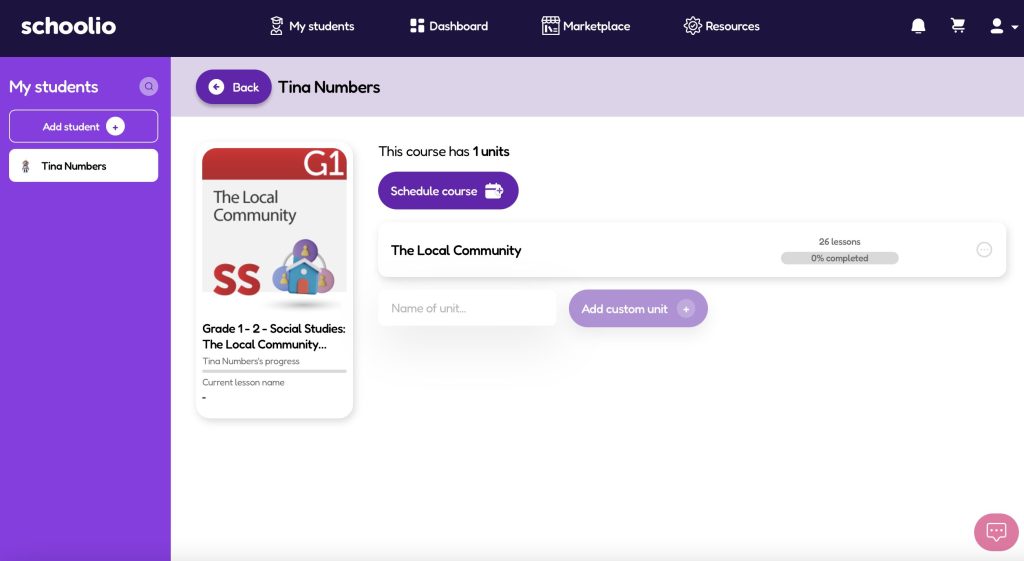
Once you’ve selected the course you want to check out, you can select the unit by clicking on it. For example, in the photo above, you would select ‘The Local Community’.

Step 2: Select the lessons

select the lesson

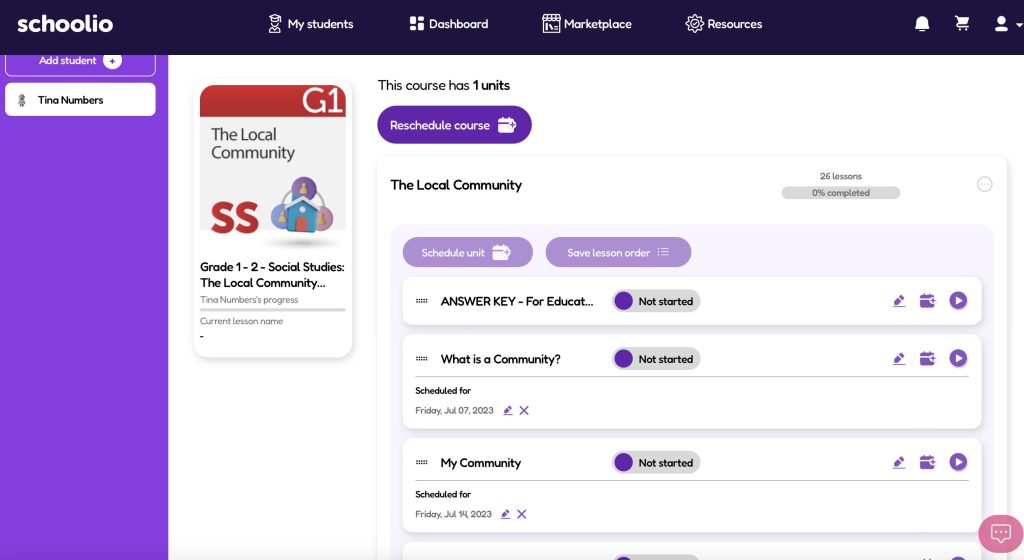
You will now see the different lessons available. At the top, on the parent portal, you will see the answer key that you can use to check your student’s work. When you’re ready, you can click the play button on the lesson.

Step 3: View the lesson

The Schoolio Video Lesson

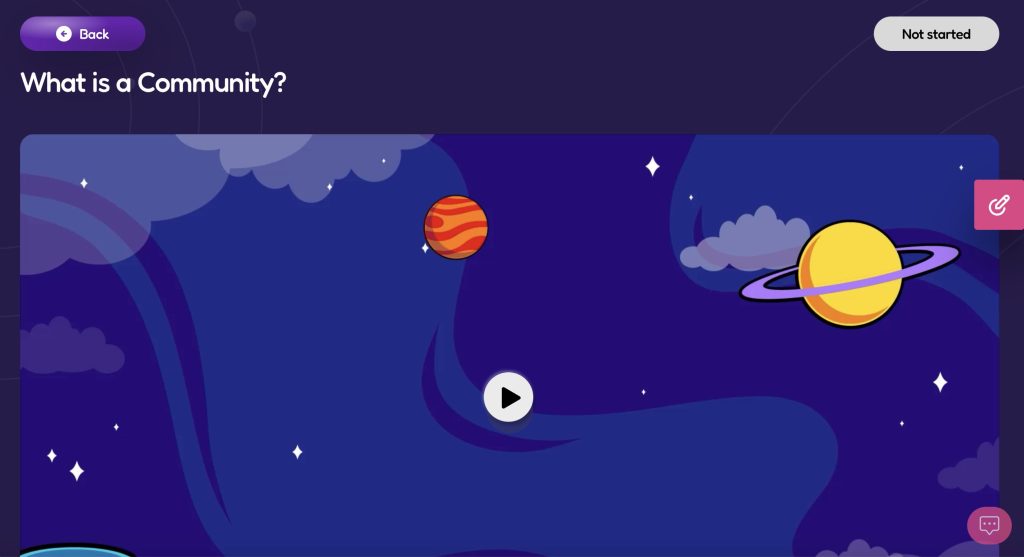
Now you can enjoy the video lesson by pressing ‘play’ on the video.

Step 4: Lesson Assessment

When the video has been completed, you can scroll past the video to the lesson assessment. Now you can click ‘Launch’ and go through the lesson assessment.

Step 5: Worksheet and Lesson Sheet

Worksheet

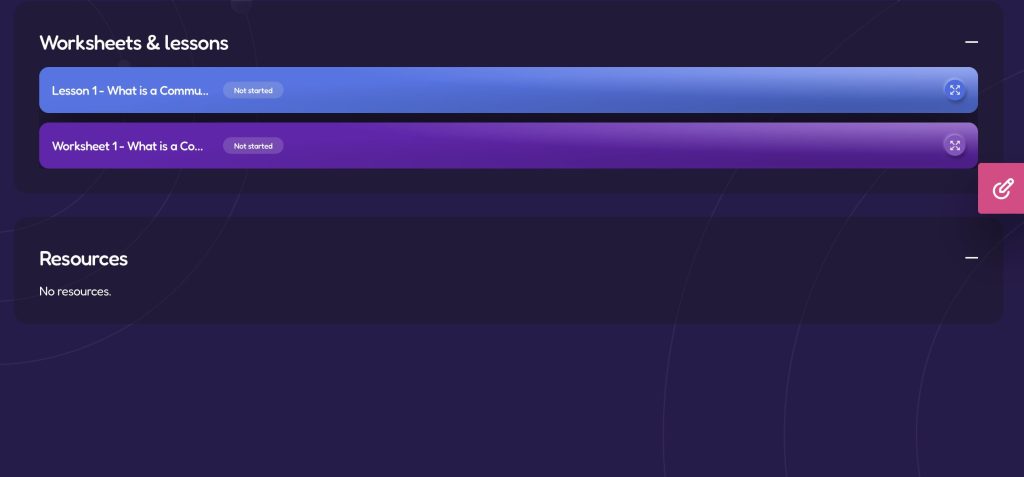
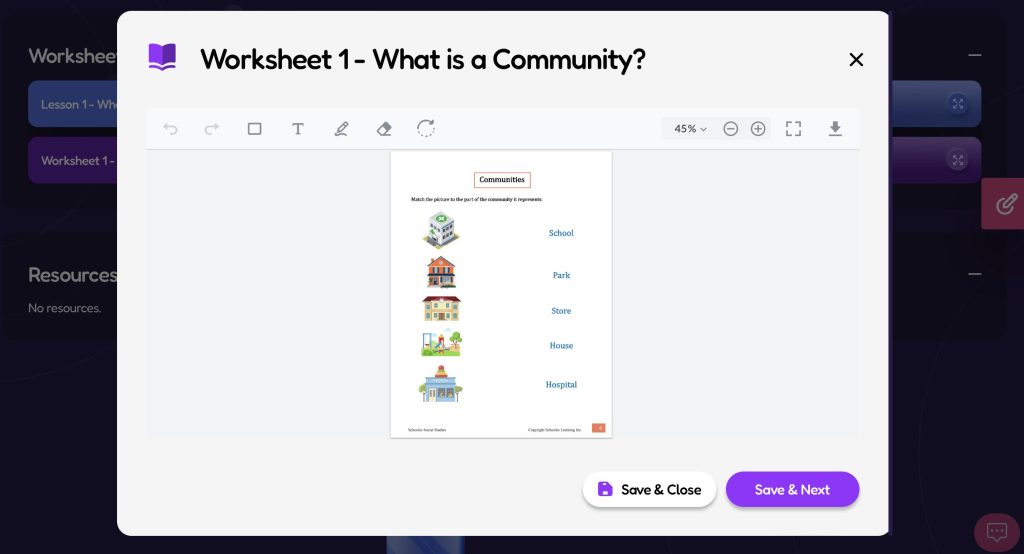
After completing the lesson assessment, you can scroll down to find ‘Lesson 1’ and ‘Worksheet 1’. Lesson 1 is the core lesson that comes with the Schoolio Curriculum. You can use lesson one to discuss the lesson concept further with your child. This is optional because everything in the lesson is included in the video lesson. Worksheet 1 is not optional, so you will need to click on the four-pointing arrows on the right side of the screen to open the worksheet.

Step 6: Complete the worksheet

Complete the worksheet

You can now navigate through the worksheet. There are two options to complete the worksheet. Using the annotation feature, you can do it on a tablet, iPad or computer. Or you can print the lesson and have your child complete their worksheet pencil to paper. To annotate, click on the T or Pencil icon at the top of the worksheet. Then use either the typing tool or drawing tool to complete the lesson. Make sure to Save your progress.

If you’d prefer your child to complete the worksheet with paper and a pencil. You can click the arrow pointing down on the right side of the screen. Download the worksheet to your device and print it. You can use the answer key to view your child’s responses and match them with the answer key.

Need further assistance?

Please let us know if you need further assistance understanding how to navigate the lessons.
Click here to book a Concierge Call. 

Watch this quick video about navigating the lessons.

Check out this thorough explanation video about all about how to navigate and annotate Schoolio Digital lessons.

How to Navigate & Annotate on Lessons.

If you have further questions, feel free to reach out to us! We’re always here to help.

Downloading and Printing from the Schoolio Digital Platform

Are you new to the Schoolio Digital Platform? Using the Schoolio digital platform might overwhelm you, and learning a new digital system can be confusing! That’s why we are here to help guide you through every step on the Schoolio Digital platform so that you and your student will be successful while bringing fun back into learning. Let’s learn about downloading and printing from the Schoolio Digital Platform. 

This blog will cover a basic concept about using the Schoolio digital platform; downloading and printing from the Schoolio Digital Platform is much easier than you’d think, so let’s dive in!

Downloading and Printing from the Schoolio Digital Platform.

Now that you have successfully added a student to your portal added courses to your students portal, and added courses to your planner, you can take your next step: downloading and printing from the Schoolio Digital Platform. You don’t have to download and print the pdfs that come with your video lessons, as you can annotate directly on the platform; however, many people enjoy downloading and printing the worksheets so that their child can still get crucial hands-on writing skills.

Step 1: Select your student

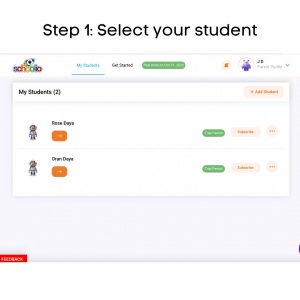
Step 1: Select Your Student.

If you have multiple children registered on your account, you will need to choose the student for which you are adding to the planner on the Schoolio Digital Platform. Click on the orange right-facing arrow of the student that you’d like to customize the planner for. 

Step 4: Scroll Down

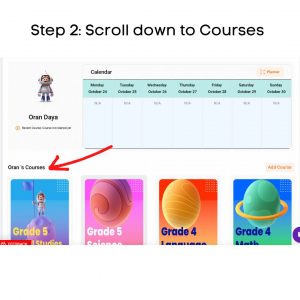
Step 2: Scroll Down to see Your Child’s Courses.

Once you have made it to your student’s portal, scroll down until you see your child’s courses.

Step 3: Open the Course

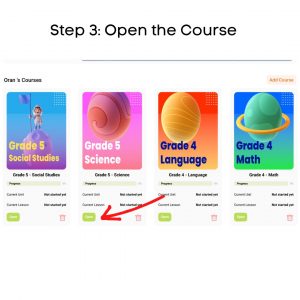
Step 3: Select the Course You’d like to Download from.

Now that you have located your child’s courses, you can select the course you’d like to print from. Once you find the course you’d like to print from, click the green ‘open’ button underneath the course’s thumbnail.

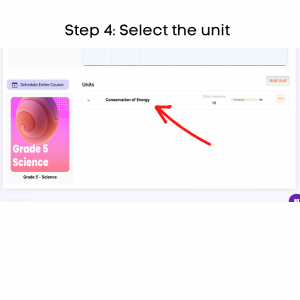
Step 4: Select the unit

Step 4: Select the Unit.

When you select the course you’d like to download and print lessons from; you will be taken directly to the course. Now, you can choose the unit you want to work with. Click on the unit that you’d like to work from. 

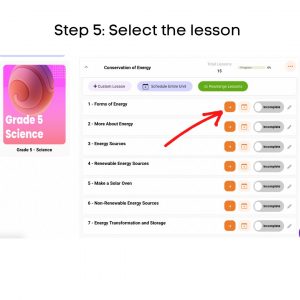
Step 5: Select the lesson

Step 5: Select the Lesson.

When you have selected the unit, you will be taken to that units page which will list all the lessons available in the unit; choose the lesson you want to download and print from by clicking the orange arrow. 

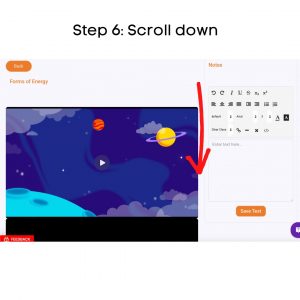
Step 6: Scroll down

Step 6: Scroll to Below the Lesson Video.

Now that you are on the lesson page scroll down below the lesson’s video.

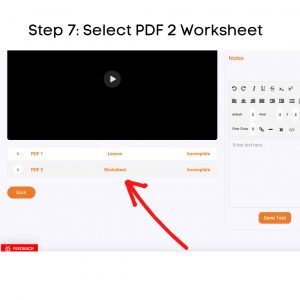
Step 7: Select PDF

Step 7: Select the PDF 2 Worksheet.

You will see two options at the bottom of the lesson’s video. PDF1 Lesson and PDF2 Worksheet. The lesson is the hard copy of the lesson that your child watched the video of. You can download this for further lesson study or discussion. For the worksheet, click the white arrow beside PDF2. 

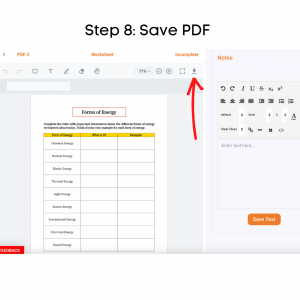
Step 8: Save PDF

Step 8: Download the PDF to Your Device.

Now that you have successfully opened the worksheet PDF, you can push the arrow at the top right-hand side of the worksheet that looks like an arrow pointing down towards a line.

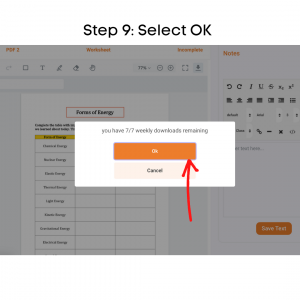
Step 9: Select OK

Step 9: Select OK.

Once you have pushed the arrow pointing down, it will tell you how many pdf downloads you have left for the week. Select the orange ‘OK’ button to continue. 

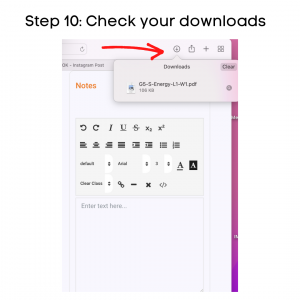
Step 10: Check your downloads

Step 10: Check Your Devices Downloads.

After downloading the pdf worksheet, check your computer’s downloads. Most downloads can be shown on the browser or the finder. Once you have located the download on your device, click on it. 

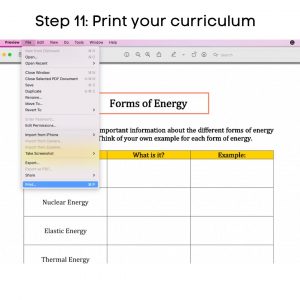
Step 11: Print your curriculum

Step 11: Print your curriculum.

Now that the worksheet PDF is on your computer, you can open it and select print. This may vary by which brand of computer you have. But all computers do or should have a printing option.

Step 12: Get started!

Now that you’re a pro at downloading and printing from the Schoolio Digital Platform, you are ready to start learning! Enjoy and have fun!

If you are confused about how to schedule lessons for your child, we have got you covered. Click here to learn about scheduling on the Schoolio Digital Planner. 

We hope you and your student will enjoy The Schoolio Digital Platform with over 4,000+ videos, interactives, and pre-made or custom lessons to suit your student’s learning style. If you are confused about how to get started, we are happy to help.

Book a Concierge Call.

If you aren’t sure how to get started or what programs would best suit your child’s learning needs, then you can chat with one of our experts on a one-on-one Concierge Call, completely free!
Click here to book a Concierge Call. 


Do you need more help downloading and printing from the Schoolio Digital Platform?

Check out this thorough explanation video all about downloading and printing from the Schoolio Digital Platform.

Click here for the video. 

How to Schedule Lessons on the Schoolio Digital Platform

How to Schedule Lessons on the Schoolio Digital Platform

Now that you have successfully added a course for your student on the Schoolio Digital Platform, you are ready to customize your learning schedule. In this blog, we will learn how to schedule lessons on the Schoolio Digital Platform.

There’s more than one way to add to your schedule on the Schoolio Digital Platform.

Did you know there is more than one way to add courses and lessons to your child’s schedule on the Schoolio Digital Platform? Let’s walk through both the options.

Option 1: Click Schedule on the Course or Unit

Option 1: Schedule

When you select the student you’d like to schedule, you can click ‘schedule’ at the bottom of the unit or course you want to add. Once you have selected the unit it will take you to the lessons page where you can schedule the course.

Select the date and time

You can now select the day and time you want your student to complete the lesson. Additionally, you will have the option to repeat the lesson plan with how you’d like. Then you are able to select the interval for 1 week, 2 weeks or more.

Option 2: Schedule from the planner

Calendar Overview

Once on the Calendar overview, you can schedule a lesson by selecting the ‘schedule lesson’ button.

Calendar Overview

When you click ‘schedule lesson,’ you will see the menu to select the lesson that you’d like to add to the schedule. Select the course, unit and lesson, then select the day and time. You can either click ‘save’ and continue on or ‘save and new’ to add additional lessons to the planner.

Now you can get started!

Now that you have added a lesson to the planner, you are ready to start learning! Enjoy and have fun!

If you aren’t seeing all the courses you’d like for your child, you can always add more! Click here to learn about adding a course to the Schoolio Digital Platform.

We hope you and your student will enjoy The Schoolio Digital Platform with over 4,000+ videos, interactives, and pre-made or custom lessons to suit your student’s learning style. If you need clarification about how to get started, we are happy to help.

Book a Concierge Call.

If you need help with how to get started or what programs would best suit your child’s learning needs, then you can chat with one of our experts on a one-on-one Concierge Call, completely free!
Click here to book a Concierge Call. 

Do you need further information about how to schedule a lesson?

Check out this thorough explanation video on adding to the planner on the Schoolio Digital Platform!

https://youtu.be/v0hpiwRJwLU

Click here for video.

Adding a Course on the Schoolio Digital Platform

Adding a Course on the Schoolio Digital Platform

The Schoolio Digital Platform offers 4,000+ video lessons, worksheets, interactives, lesson quizzes, and more for a super affordable price. Covering all the core curriculum for grades one to eight. Now that you have signed up your student and subscribed to the Schoolio Digital Platform, you are reading to take the next step: Adding a course on the Schoolio Digital Platform. 

Let’s Get Ready to Add a Course on the Schoolio Digital Platform! 

Now that you have successfully subscribed to the Schoolio Digital Platform, you can take your next step: Add courses for your student on the platform. If you’ve already added your courses when registering your students, you can leave it how it is; however, if you’d like to customize the courses and add more, you can follow these steps.

Step 1: Browse By Marketplace or Add a Custom Course 

How to Add a Course on the Schoolio Digital Platform

You’re almost ready to begin your homeschooling journey on Schoolio Digital. First, select courses for your child to get started. You can either Browse by Marketplace or Create a Custom Course. The marketplace is where you will find all the core curriculum for your child’s grade. Adding a customer course is something that you can do for electives. You can learn more by clicking on the highlighted ‘Custom Course’ in blue. 

Step 2: Select the Courses or Units that You Need

Step 2: Select the Courses or units

You can select the courses or units you want based on your child’s learning needs and grades. Simply click ‘Add to Cart’ on the course that you are looking for.

Step 3: Add Course

Add Course

Your third step will be to click ‘add’ on your shopping cart; you’ll notice that almost everything on the Schoolio Digital Platform is $0. This is because all core subjects are included on the Schoolio Digital Platform. When you see a price on a unit on the Schoolio Digital Platform, it is because it isn’t a core curriculum piece but rather an elective.

Step 4: Get started!

All curriculum bundles or units that you add will appear on your child’s lesson portal for you to assign for them.

Book a Concierge Call.

If you need help with how to get started or what programs would best suit your child’s learning needs, then you can chat with one of our experts on a one-on-one Concierge Call, completely free!
Click here to book a Concierge Call. 

Need a little more help with adding courses?

Check out this thorough explanation video on adding a course on the Schoolio Digital Platform.

https://youtu.be/cWikSVEjIGA
Learn how to add a course