Downloading and Printing from the Schoolio Digital Platform

Are you new to the Schoolio Digital Platform? Using the Schoolio digital platform might overwhelm you, and learning a new digital system can be confusing! That’s why we are here to help guide you through every step on the Schoolio Digital platform so that you and your student will be successful while bringing fun back into learning. Let’s learn about downloading and printing from the Schoolio Digital Platform. 

This blog will cover a basic concept about using the Schoolio digital platform; downloading and printing from the Schoolio Digital Platform is much easier than you’d think, so let’s dive in!

Downloading and Printing from the Schoolio Digital Platform.

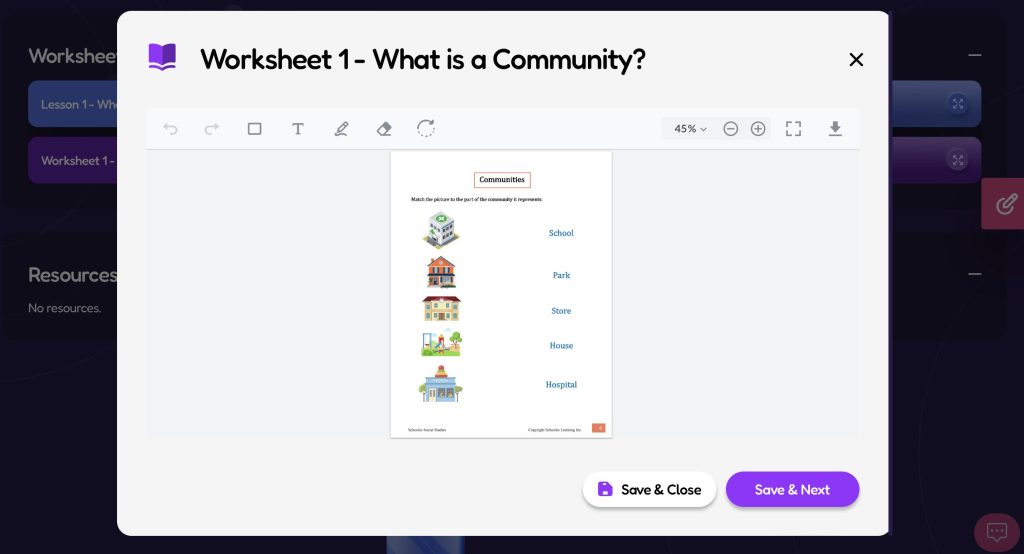
Now that you have successfully added a student to your portal added courses to your students portal, and added courses to your planner, you can take your next step: downloading and printing from the Schoolio Digital Platform. You don’t have to download and print the pdfs that come with your video lessons, as you can annotate directly on the platform; however, many people enjoy downloading and printing the worksheets so that their child can still get crucial hands-on writing skills.

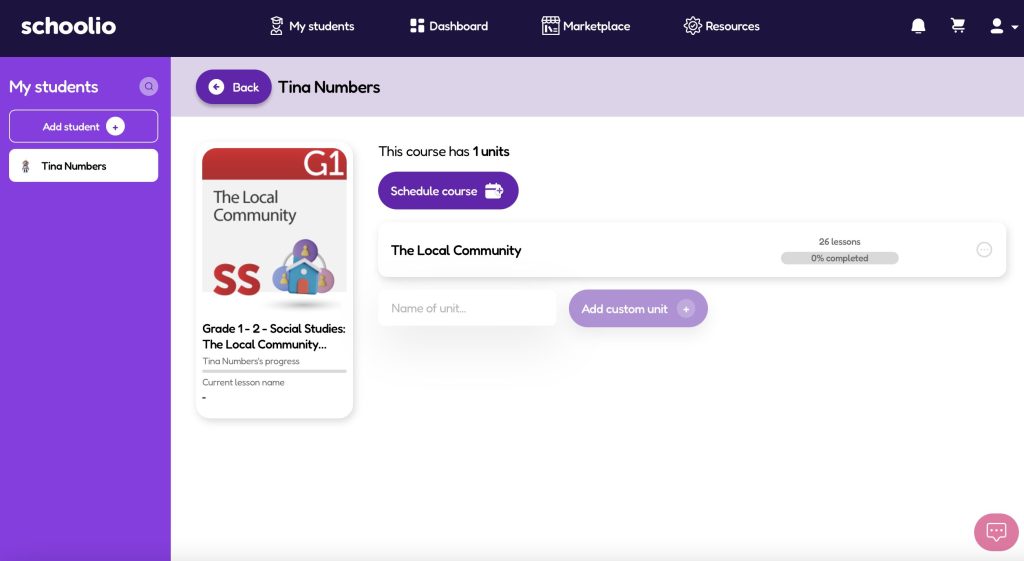
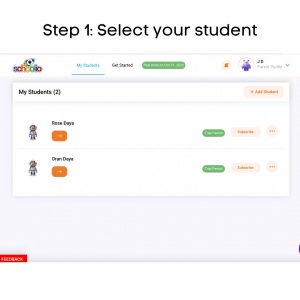
Step 1: Select your student

Step 1: Select Your Student.

If you have multiple children registered on your account, you will need to choose the student for which you are adding to the planner on the Schoolio Digital Platform. Click on the orange right-facing arrow of the student that you’d like to customize the planner for. 

Step 4: Scroll Down

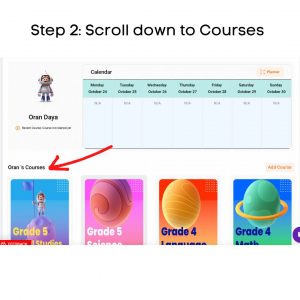
Step 2: Scroll Down to see Your Child’s Courses.

Once you have made it to your student’s portal, scroll down until you see your child’s courses.

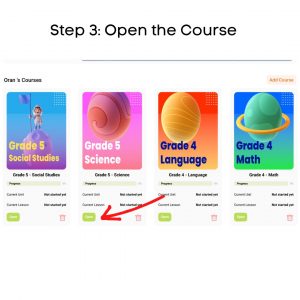
Step 3: Open the Course

Step 3: Select the Course You’d like to Download from.

Now that you have located your child’s courses, you can select the course you’d like to print from. Once you find the course you’d like to print from, click the green ‘open’ button underneath the course’s thumbnail.

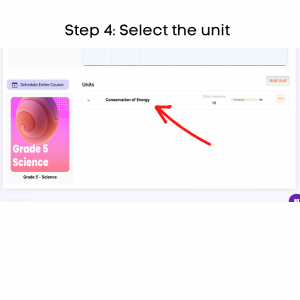
Step 4: Select the unit

Step 4: Select the Unit.

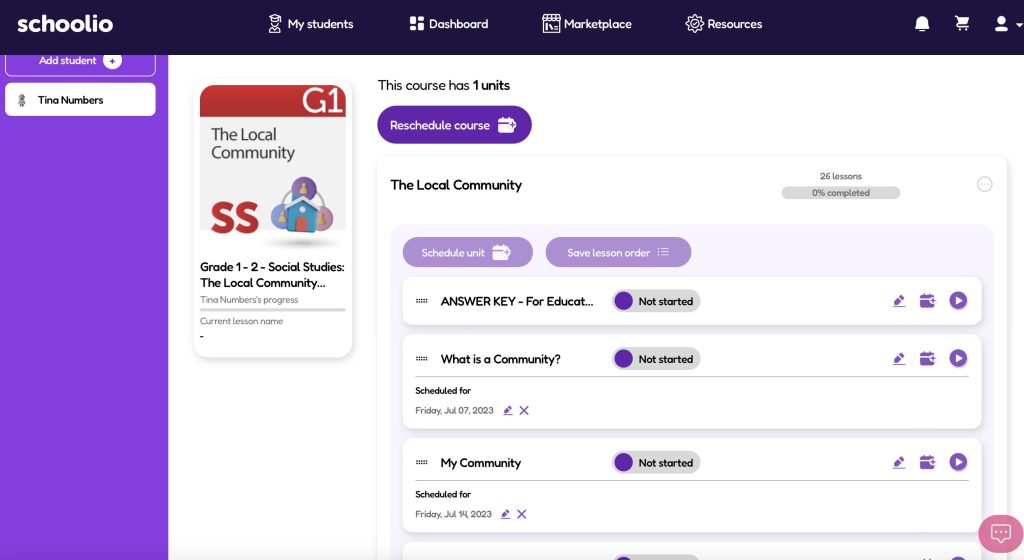
When you select the course you’d like to download and print lessons from; you will be taken directly to the course. Now, you can choose the unit you want to work with. Click on the unit that you’d like to work from. 

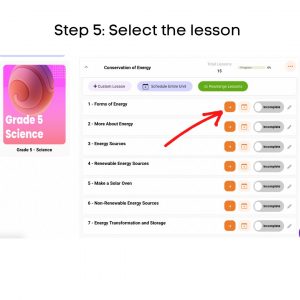
Step 5: Select the lesson

Step 5: Select the Lesson.

When you have selected the unit, you will be taken to that units page which will list all the lessons available in the unit; choose the lesson you want to download and print from by clicking the orange arrow. 

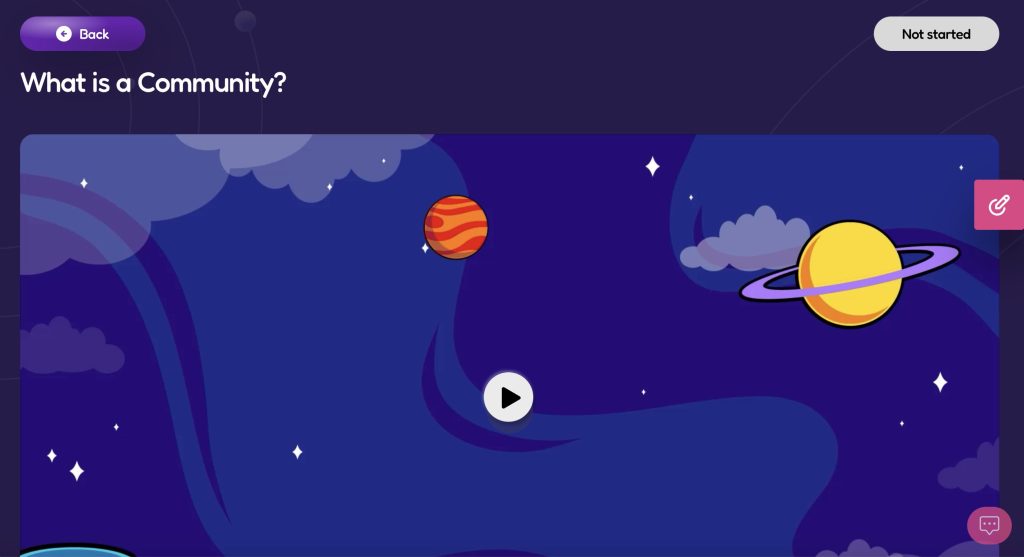
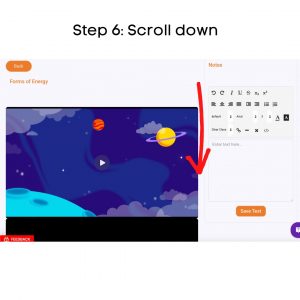
Step 6: Scroll down

Step 6: Scroll to Below the Lesson Video.

Now that you are on the lesson page scroll down below the lesson’s video.

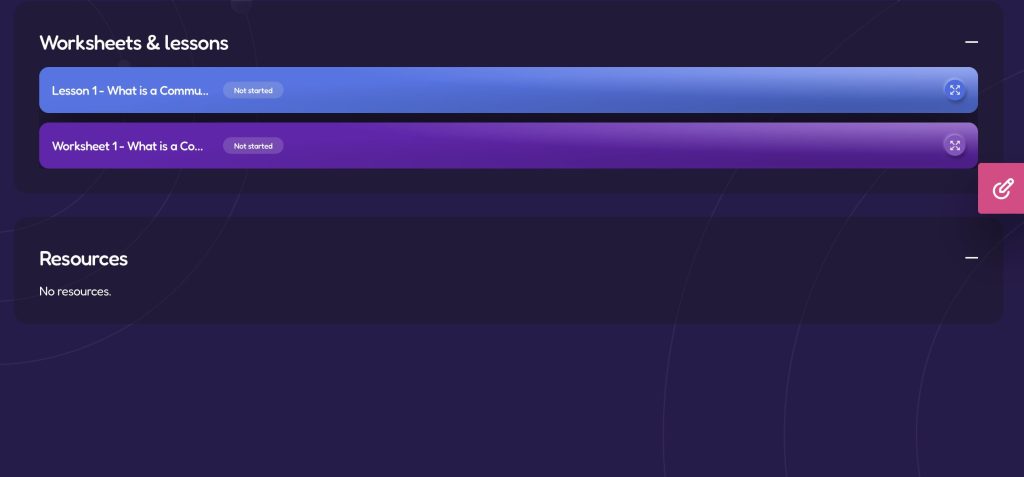
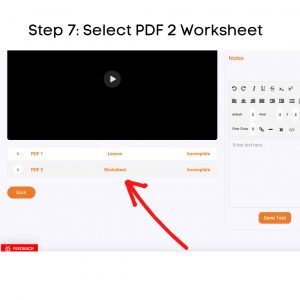
Step 7: Select PDF

Step 7: Select the PDF 2 Worksheet.

You will see two options at the bottom of the lesson’s video. PDF1 Lesson and PDF2 Worksheet. The lesson is the hard copy of the lesson that your child watched the video of. You can download this for further lesson study or discussion. For the worksheet, click the white arrow beside PDF2. 

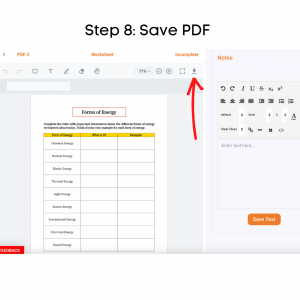
Step 8: Save PDF

Step 8: Download the PDF to Your Device.

Now that you have successfully opened the worksheet PDF, you can push the arrow at the top right-hand side of the worksheet that looks like an arrow pointing down towards a line.

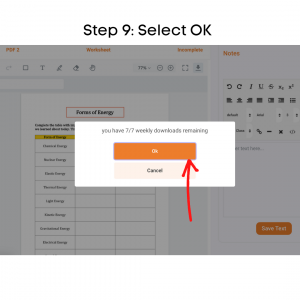
Step 9: Select OK

Step 9: Select OK.

Once you have pushed the arrow pointing down, it will tell you how many pdf downloads you have left for the week. Select the orange ‘OK’ button to continue. 

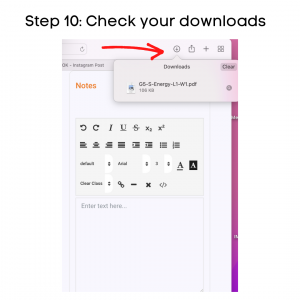
Step 10: Check your downloads

Step 10: Check Your Devices Downloads.

After downloading the pdf worksheet, check your computer’s downloads. Most downloads can be shown on the browser or the finder. Once you have located the download on your device, click on it. 

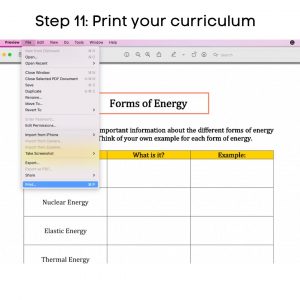
Step 11: Print your curriculum

Step 11: Print your curriculum.

Now that the worksheet PDF is on your computer, you can open it and select print. This may vary by which brand of computer you have. But all computers do or should have a printing option.

Step 12: Get started!

Now that you’re a pro at downloading and printing from the Schoolio Digital Platform, you are ready to start learning! Enjoy and have fun!

If you are confused about how to schedule lessons for your child, we have got you covered. Click here to learn about scheduling on the Schoolio Digital Planner. 

We hope you and your student will enjoy The Schoolio Digital Platform with over 4,000+ videos, interactives, and pre-made or custom lessons to suit your student’s learning style. If you are confused about how to get started, we are happy to help.

Book a Concierge Call.

If you aren’t sure how to get started or what programs would best suit your child’s learning needs, then you can chat with one of our experts on a one-on-one Concierge Call, completely free!
Click here to book a Concierge Call. 


Do you need more help downloading and printing from the Schoolio Digital Platform?

Check out this thorough explanation video all about downloading and printing from the Schoolio Digital Platform.

Click here for the video. 

How to Schedule Lessons on the Schoolio Digital Platform

How to Schedule Lessons on the Schoolio Digital Platform

Now that you have successfully added a course for your student on the Schoolio Digital Platform, you are ready to customize your learning schedule. In this blog, we will learn how to schedule lessons on the Schoolio Digital Platform.

There’s more than one way to add to your schedule on the Schoolio Digital Platform.

Did you know there is more than one way to add courses and lessons to your child’s schedule on the Schoolio Digital Platform? Let’s walk through both the options.

Option 1: Click Schedule on the Course or Unit

Option 1: Schedule

When you select the student you’d like to schedule, you can click ‘schedule’ at the bottom of the unit or course you want to add. Once you have selected the unit it will take you to the lessons page where you can schedule the course.

Select the date and time

You can now select the day and time you want your student to complete the lesson. Additionally, you will have the option to repeat the lesson plan with how you’d like. Then you are able to select the interval for 1 week, 2 weeks or more.

Option 2: Schedule from the planner

Calendar Overview

Once on the Calendar overview, you can schedule a lesson by selecting the ‘schedule lesson’ button.

Calendar Overview

When you click ‘schedule lesson,’ you will see the menu to select the lesson that you’d like to add to the schedule. Select the course, unit and lesson, then select the day and time. You can either click ‘save’ and continue on or ‘save and new’ to add additional lessons to the planner.

Now you can get started!

Now that you have added a lesson to the planner, you are ready to start learning! Enjoy and have fun!

If you aren’t seeing all the courses you’d like for your child, you can always add more! Click here to learn about adding a course to the Schoolio Digital Platform.

We hope you and your student will enjoy The Schoolio Digital Platform with over 4,000+ videos, interactives, and pre-made or custom lessons to suit your student’s learning style. If you need clarification about how to get started, we are happy to help.

Book a Concierge Call.

If you need help with how to get started or what programs would best suit your child’s learning needs, then you can chat with one of our experts on a one-on-one Concierge Call, completely free!
Click here to book a Concierge Call. 

Do you need further information about how to schedule a lesson?

Check out this thorough explanation video on adding to the planner on the Schoolio Digital Platform!

https://youtu.be/v0hpiwRJwLU

Click here for video.

Adding a Course on the Schoolio Digital Platform

Adding a Course on the Schoolio Digital Platform

The Schoolio Digital Platform offers 4,000+ video lessons, worksheets, interactives, lesson quizzes, and more for a super affordable price. Covering all the core curriculum for grades one to eight. Now that you have signed up your student and subscribed to the Schoolio Digital Platform, you are reading to take the next step: Adding a course on the Schoolio Digital Platform. 

Let’s Get Ready to Add a Course on the Schoolio Digital Platform! 

Now that you have successfully subscribed to the Schoolio Digital Platform, you can take your next step: Add courses for your student on the platform. If you’ve already added your courses when registering your students, you can leave it how it is; however, if you’d like to customize the courses and add more, you can follow these steps.

Step 1: Browse By Marketplace or Add a Custom Course 

How to Add a Course on the Schoolio Digital Platform

You’re almost ready to begin your homeschooling journey on Schoolio Digital. First, select courses for your child to get started. You can either Browse by Marketplace or Create a Custom Course. The marketplace is where you will find all the core curriculum for your child’s grade. Adding a customer course is something that you can do for electives. You can learn more by clicking on the highlighted ‘Custom Course’ in blue. 

Step 2: Select the Courses or Units that You Need

Step 2: Select the Courses or units

You can select the courses or units you want based on your child’s learning needs and grades. Simply click ‘Add to Cart’ on the course that you are looking for.

Step 3: Add Course

Add Course

Your third step will be to click ‘add’ on your shopping cart; you’ll notice that almost everything on the Schoolio Digital Platform is $0. This is because all core subjects are included on the Schoolio Digital Platform. When you see a price on a unit on the Schoolio Digital Platform, it is because it isn’t a core curriculum piece but rather an elective.

Step 4: Get started!

All curriculum bundles or units that you add will appear on your child’s lesson portal for you to assign for them.

Book a Concierge Call.

If you need help with how to get started or what programs would best suit your child’s learning needs, then you can chat with one of our experts on a one-on-one Concierge Call, completely free!
Click here to book a Concierge Call. 

Need a little more help with adding courses?

Check out this thorough explanation video on adding a course on the Schoolio Digital Platform.

https://youtu.be/cWikSVEjIGA
Learn how to add a course

How to Add a Student to the Schoolio Digital Platform.

How to Add a Student to the Schoolio Digital Platform.

Are you new to the Schoolio Digital Platform? Using the Schoolio digital platform might overwhelm you, and learning a new digital system can be confusing! That’s why we are here to help guide you through every step on the Schoolio Digital platform so that you and your student will be successful while bringing fun back into learning. This blog will teach how to add a student to the Schoolio Digital Platform.

Let’s Learn How to Add a Student to the Schoolio Digital Platform.

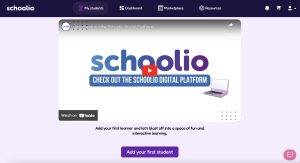
Adding a student to your account is much easier than you’d think. First, head to your account and sign in. Once you’ve signed in, you will be prompted to add your first student on the Schoolio Digital Platform.

Step 1: Add Your First Student 

How to Add a Student on the Schoolio Digital Platform

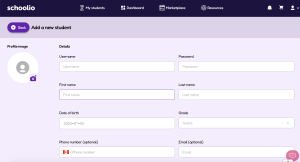
Add Student Details:

Once you have clicked the Add Your First Student Button, you will be taken to the student details page. You can go ahead and enter your student’s information here. Fill out the required fields: Student Username, Student’s Password, First Name, and Date of Birth. Then select your child’s school grade. (Don’t stress too much about this, as the courses are customizable. So, if your child is technically in grade 4 but needs a grade 3 level math, you can select that once you get to the courses.)

You can add the courses automatically or wait and add them later. Just to remind you, your student’s email and phone number are entirely optional. Now you can save your changes.

Step 2: Add Student Details

Student Details

Your Next Step is to Subscribe Your Student on the Schoolio Digital Platform.

You’re ready to go!

Now that you’ve completed all the steps for signing up, you can subscribe your student on the Schoolio Digital Platform to gain access to over 4,000+ videos and lessons.

Book a Concierge Call.

If you need help with how to get started or what programs would best suit your child’s learning needs, then you can chat with one of our experts on a one-on-one Concierge Call, completely free!
Click here to book a Concierge Call.

For more information on how to add a student on the Schoolio Digital Platform check out this video:

Now it’s time for your next step! Adding a course to your Digital Platform.

Click here for information to subscribe a student.