Rethinking Homework with ChatGPT

Rethinking Homework with ChatGPT

Rethinking Homework with ChatGPT

As students, the burdensome nature of traditional homework is an experience we all share. The struggle to complete assignments outside of class hours, often without teacher or peer support, can be a source of frustration. Fortunately, with innovations like ChatGPT and the Schoolio Learning Platform, a paradigm shift in the way we approach homework is on the horizon. Let’s start by rethinking homework with ChatGPT.

The Drawbacks of Traditional Homework

Homework, a long-standing educational practice, has been both a cornerstone and a source of stress for students. Completing assignments at home, detached from teacher guidance and peer interaction, often leads to confusion and frustration. Additionally, traditional homework can be time-consuming, leaving little room for students to explore other interests or hobbies.

Moreover, it perpetuates inequality, with students from disadvantaged backgrounds lacking the resources and support needed to excel. This contributes to a widening achievement gap among students from different socioeconomic backgrounds.

Schoolio Family Plan

ChatGPT and In-Class Homework on the Schoolio Learning Platform

Enter ChatGPT, an AI-powered chatbot, specifically designed to assist students with their homework. What sets ChatGPT apart is its real-time ability to generate unique questions and solutions.

Utilizing ChatGPT in this manner ensures that all students have the opportunity to complete assignments and seek clarification during class, rendering traditional homework obsolete. This approach not only alleviates the stress associated with homework but also enables teachers to offer immediate feedback and support.

The Advantages of In-Class Homework with ChatGPT

In-class homework, facilitated by the Schoolio Learning Platform, brings forth numerous benefits. The presence of teacher and peer support increases the likelihood of assignment completion. Fostering better learning outcomes and heightened engagement. Real-time assessment of student learning provides valuable insights for teachers to adapt their teaching approaches.

Schoolio e-books

Furthermore, in-class homework becomes a powerful tool for differentiation. Using ChatGPT, teachers can generate questions of varying difficulty levels, catering to both advanced and struggling students. This ensures that all students are actively engaged and appropriately challenged, regardless of their ability level.

Embracing the Future of Education

ChatGPT, coupled with the Schoolio Learning Platform, has the potential to revolutionize our approach to homework. By replacing traditional homework with in-class assignments, we create a more engaging and supportive learning environment for students. This transformative shift levels the playing field for learners from diverse backgrounds, eliminating the struggle with homework and providing equal access to support and resources.

The integration of ChatGPT in classrooms not only transforms the learning experience but also enhances teacher-student relationships. Immediate feedback and support foster stronger connections, contributing to a positive and encouraging educational atmosphere. It’s time for educators to embrace the transformative potential of ChatGPT and the Schoolio Learning Platform, ushering in a new era in education.

Schoolio Learning Resources

How to Navigate and Annotate Schoolio Digital Lessons

How to Navigate and Annotate Schoolio Digital Lessons

We are so excited that you are trying out the Schoolio Digital Platform. If you haven’t already, check out all the informative blogs about how to get started. This blog will cover one of the most fascinating parts of the Schoolio Digital Platform! Let’s learn how to navigate and annotate Schoolio Digital Lessons!

Are you ready to Navigate Schoolio Digital Lessons?

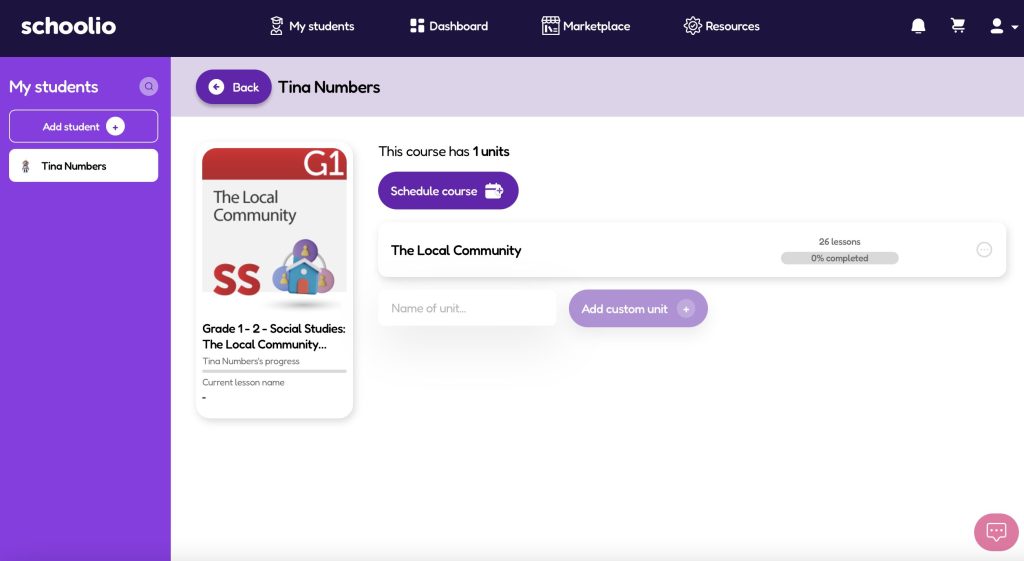
Step 1: Select the Unit

Select the unit

Once you’ve selected the course you want to check out, you can select the unit by clicking on it. For example, in the photo above, you would select ‘The Local Community’.

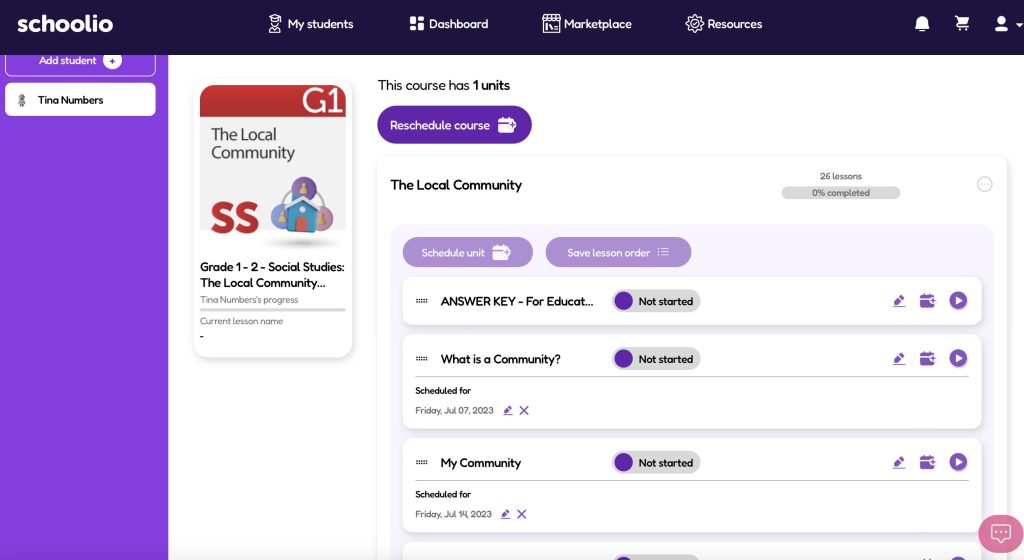
Step 2: Select the lessons

select the lesson

You will now see the different lessons available. At the top, on the parent portal, you will see the answer key that you can use to check your student’s work. When you’re ready, you can click the play button on the lesson.

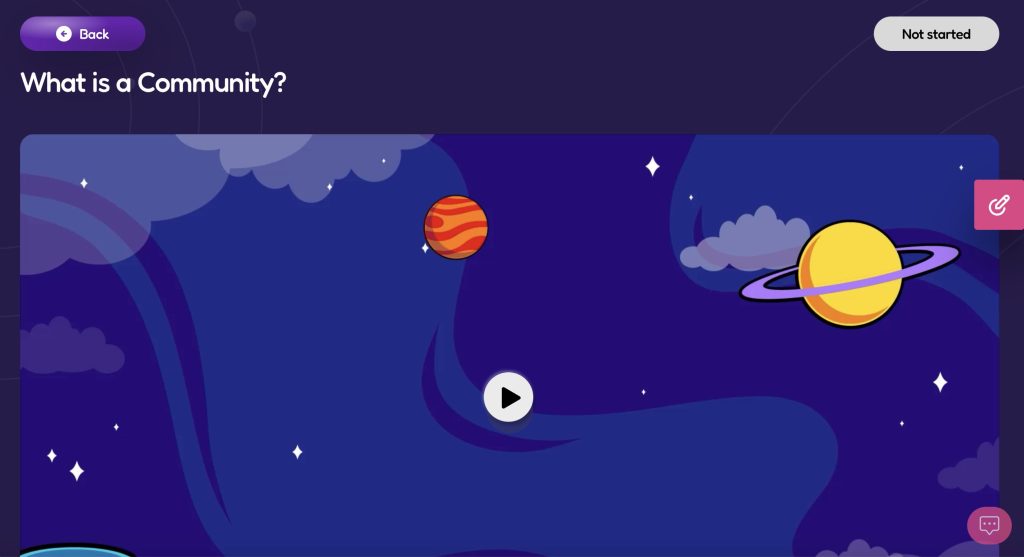
Step 3: View the lesson

The Schoolio Video Lesson

Now you can enjoy the video lesson by pressing ‘play’ on the video.

Step 4: Lesson Assessment

When the video has been completed, you can scroll past the video to the lesson assessment. Now you can click ‘Launch’ and go through the lesson assessment.

Step 5: Worksheet and Lesson Sheet

Worksheet

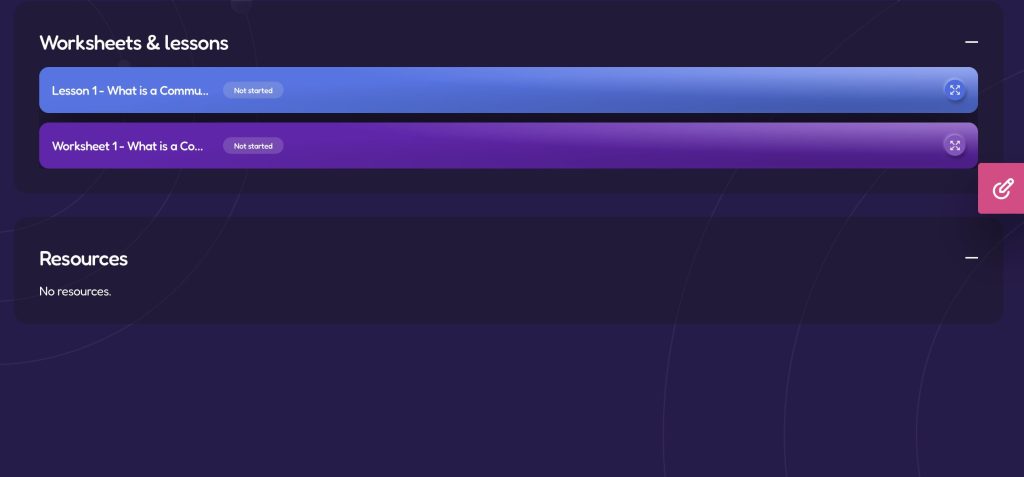
After completing the lesson assessment, you can scroll down to find ‘Lesson 1’ and ‘Worksheet 1’. Lesson 1 is the core lesson that comes with the Schoolio Curriculum. You can use lesson one to discuss the lesson concept further with your child. This is optional because everything in the lesson is included in the video lesson. Worksheet 1 is not optional, so you will need to click on the four-pointing arrows on the right side of the screen to open the worksheet.

Step 6: Complete the worksheet

Complete the worksheet

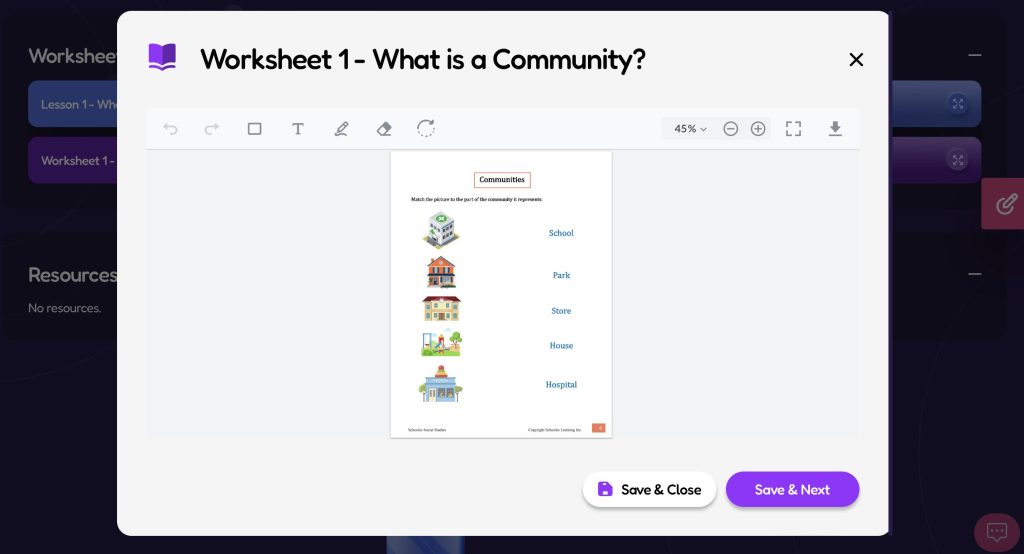
You can now navigate through the worksheet. There are two options to complete the worksheet. Using the annotation feature, you can do it on a tablet, iPad or computer. Or you can print the lesson and have your child complete their worksheet pencil to paper. To annotate, click on the T or Pencil icon at the top of the worksheet. Then use either the typing tool or drawing tool to complete the lesson. Make sure to Save your progress.

If you’d prefer your child to complete the worksheet with paper and a pencil. You can click the arrow pointing down on the right side of the screen. Download the worksheet to your device and print it. You can use the answer key to view your child’s responses and match them with the answer key.
Need further assistance?

Please let us know if you need further assistance understanding how to navigate the lessons.
Click here to book a Concierge Call. 

Watch this quick video about navigating the lessons.

Check out this thorough explanation video about all about how to navigate and annotate Schoolio Digital lessons.

How to Navigate & Annotate on Lessons.

If you have further questions, feel free to reach out to us! We’re always here to help.

Teaching Financial Literacy

Teaching Financial Literacy, Why is it Important?

Written by Nakisha Blain

Teaching financial literacy is crucial to a well-rounded education because money is security. If we skip teaching our kids about money, we set them up for unnecessary hardship later on in life.

What is Financial Literacy? 

Financial literacy is understanding how money works and how to manage money. 

Despite being able to summarize it in a sentence, teaching financial literacy, and learning about financial literacy is complex and often challenging. 

We start learning about it from a young age by watching our parents and their money-spending habits. 

Then we learn things in elementary school, like how to count coins and bills and make change. In high school math, we practice calculating interest and principal. 

But even with all these lessons, the financial education of most people still needs to improve.

Teaching Financial Literacy: Parental Habits.

Whether you realize it or not, we start teaching financial literacy when our children are young by them observing how we use our money. 

It starts with children observing our spending habits. I tell my children when the budget is getting low. And then I explain to them why I have to save the money we have left for bills or emergencies. 

We can either support their learning of this or damage it. So, for example, when people give my kids money as gifts, I rarely let them go over their budget for things. 
If they get $20 but want something that is $25, I do not give them the extra $5. So they have to pick something else or save their money for that $25 item.

By being firm with spending limits, I am teaching them to prioritize and do their best to make their money count. And I am constantly reminding them that they can choose to save their money, although they rarely make that choice. 

Simply put, as parents, we are most responsible for modeling and reinforcing good money habits. However, we also need to show them how to prioritize and be happy living within their means.

Teaching Financial Literacy: Academics 

Financial literacy is also full of academic skills. 

In younger learners, that looks like learning to recognize coins and count them based on their value. In older kids, that may look like understanding and calculating interest. Both of these skills are covered in most math curricula. 

However, there are other essential skills that are necessary for financial literacy that often aren’t covered in general math classes. 

One example of that is saving for retirement. Did you know that depositing small amounts over a long period is more profitable than depositing large quantities over a short time? 

Another example is amortization calendars. Many states require new homeowners to receive an amortization calendar from their mortgage company. It is a spreadsheet showing exactly how much interest and principal you will pay on each payment until the debt is repaid. 

When you are choosing a curriculum for your financial literacy studies, it is essential to make sure they include critical, and also practical skills like balancing a checkbook, tracking spending budgeting, and saving for retirement. 

Teaching Financial Literacy: Entrepreneurship.

Another essential piece of the financial literacy puzzle is understanding entrepreneurship. Building a business requires very different skills than managing a family’s finances. Including important lessons about entrepreneurship is important. 

Check out the Entrepreneurship Special Interest Unit. 

Entrepreneurship, Academic Skills.

Entrepreneurs must be able to raise capital, valuation, set prices, and evaluate return on investment. 

While these seem like complex skills, even young children are capable of building successful businesses with help from their trusted adults. 

Entrepreneurship, Character Traits 

Entrepreneurship also teaches a lot of great character traits, too. 

Patience

All young business owners must be patient while building their businesses. But, unfortunately, it takes a while for word to get out, even for the best products or the tastiest food. 

Diligence 

To build a successful business, one must work on it every day, even when you are tired or distracted. And in doing this, we can learn diligence and the satisfaction of doing something hard. 

Social Skills 

First, selling a product or providing a service means getting out there and interacting with people. So you have to learn how to get their attention and open up to you about what they want. 

Second, working in a business is rarely done solo, so our young leaders will get first-hand experience working with people, organizing projects, and keeping people focused. 

Third, it will allow our kids to practice celebrating hard work and experiencing failure. Both are experienced together when you are part of a business. 

Problem-Solving and Critical Thinking Skills 

The most important part of teaching financial literacy and entrepreneurship to kids is the benefits of their problem-solving skills. 

By giving kids real problems to work on, you motivate them to try harder and work longer to solve their challenges. 

Kids and Entrepreneurship 

And while not all children will grow up to be entrepreneurs, their lessons can be life-changing even for a 9-5 employee. Things like hard work and problem-solving can have benefits that spill over into all parts of our lives. 

Why Use a Curriculum? 

A financial literacy curriculum will ensure you don’t miss essential skills like budgeting, balancing a checkbook, or reading an amortization calendar. 

You will feel confident that you are working hard to ensure no gaps in their education and that you are doing your best to provide them with an excellent education and set them up for success.

And Schoolio has you covered for affordable financial literacy unit studies for grades 3, 4, 5, and 8

Conclusion 

Teaching our kids about financial literacy is a long process that takes years and years instead of days or weeks. 

It’s very important that we be good role models and stewards of our money, because our children will learn more from watching us than they can from academic exercises. 

However, academic exercises are also essential to ensure they get a rigorous and diverse education, whether they are just managing their family’s finances or a business. 

We’d love to hear from you; what topics do you want to see in our next financial literacy course?

Book a Concierge Call.

If you aren’t sure how to get started or what programs would best suit your child’s learning needs, then you can chat with one of our experts on a one-on-one Concierge Call, completely free!
Click here to book a Concierge Call. 


Downloading and Printing from the Schoolio Digital Platform

Are you new to the Schoolio Digital Platform? Using the Schoolio digital platform might overwhelm you, and learning a new digital system can be confusing! That’s why we are here to help guide you through every step on the Schoolio Digital platform so that you and your student will be successful while bringing fun back into learning. Let’s learn about downloading and printing from the Schoolio Digital Platform. 

This blog will cover a basic concept about using the Schoolio digital platform; downloading and printing from the Schoolio Digital Platform is much easier than you’d think, so let’s dive in!

Downloading and Printing from the Schoolio Digital Platform.

Now that you have successfully added a student to your portal added courses to your students portal, and added courses to your planner, you can take your next step: downloading and printing from the Schoolio Digital Platform. You don’t have to download and print the pdfs that come with your video lessons, as you can annotate directly on the platform; however, many people enjoy downloading and printing the worksheets so that their child can still get crucial hands-on writing skills.

Step 1: Select your student

Step 1: Select Your Student.

If you have multiple children registered on your account, you will need to choose the student for which you are adding to the planner on the Schoolio Digital Platform. Click on the orange right-facing arrow of the student that you’d like to customize the planner for. 

Step 4: Scroll Down

Step 2: Scroll Down to see Your Child’s Courses.

Once you have made it to your student’s portal, scroll down until you see your child’s courses.

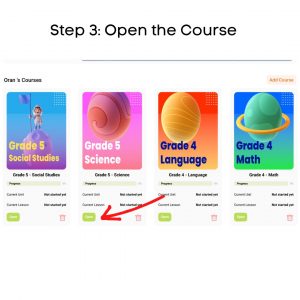
Step 3: Open the Course

Step 3: Select the Course You’d like to Download from.

Now that you have located your child’s courses, you can select the course you’d like to print from. Once you find the course you’d like to print from, click the green ‘open’ button underneath the course’s thumbnail.

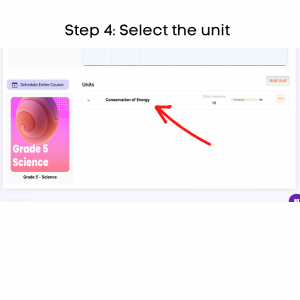
Step 4: Select the unit

Step 4: Select the Unit.

When you select the course you’d like to download and print lessons from; you will be taken directly to the course. Now, you can choose the unit you want to work with. Click on the unit that you’d like to work from. 

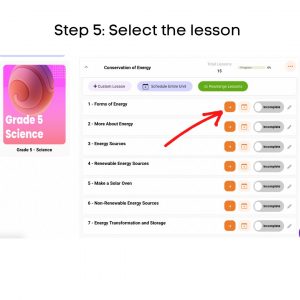
Step 5: Select the lesson

Step 5: Select the Lesson.

When you have selected the unit, you will be taken to that units page which will list all the lessons available in the unit; choose the lesson you want to download and print from by clicking the orange arrow. 

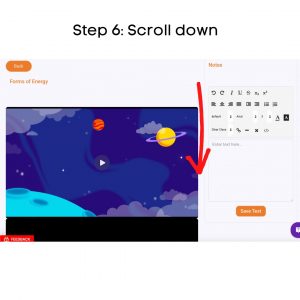
Step 6: Scroll down

Step 6: Scroll to Below the Lesson Video.

Now that you are on the lesson page scroll down below the lesson’s video.

Step 7: Select PDF

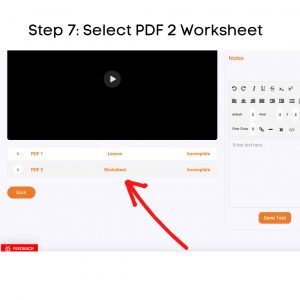
Step 7: Select the PDF 2 Worksheet.

You will see two options at the bottom of the lesson’s video. PDF1 Lesson and PDF2 Worksheet. The lesson is the hard copy of the lesson that your child watched the video of. You can download this for further lesson study or discussion. For the worksheet, click the white arrow beside PDF2. 

Step 8: Save PDF

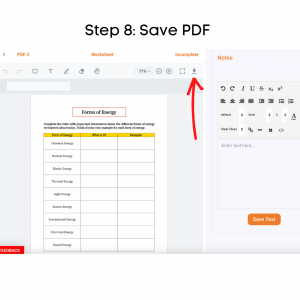
Step 8: Download the PDF to Your Device.

Now that you have successfully opened the worksheet PDF, you can push the arrow at the top right-hand side of the worksheet that looks like an arrow pointing down towards a line.

Step 9: Select OK

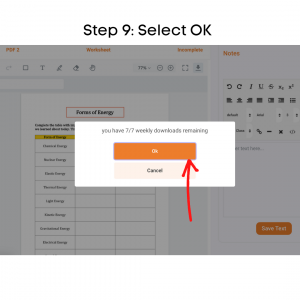
Step 9: Select OK.

Once you have pushed the arrow pointing down, it will tell you how many pdf downloads you have left for the week. Select the orange ‘OK’ button to continue. 

Step 10: Check your downloads

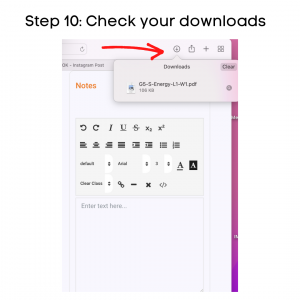
Step 10: Check Your Devices Downloads.

After downloading the pdf worksheet, check your computer’s downloads. Most downloads can be shown on the browser or the finder. Once you have located the download on your device, click on it. 

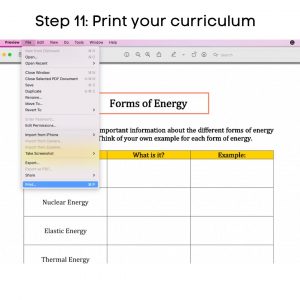
Step 11: Print your curriculum

Step 11: Print your curriculum.

Now that the worksheet PDF is on your computer, you can open it and select print. This may vary by which brand of computer you have. But all computers do or should have a printing option.

Step 12: Get started!

Now that you’re a pro at downloading and printing from the Schoolio Digital Platform, you are ready to start learning! Enjoy and have fun!

If you are confused about how to schedule lessons for your child, we have got you covered. Click here to learn about scheduling on the Schoolio Digital Planner. 

We hope you and your student will enjoy The Schoolio Digital Platform with over 4,000+ videos, interactives, and pre-made or custom lessons to suit your student’s learning style. If you are confused about how to get started, we are happy to help.

Book a Concierge Call.

If you aren’t sure how to get started or what programs would best suit your child’s learning needs, then you can chat with one of our experts on a one-on-one Concierge Call, completely free!
Click here to book a Concierge Call. 


Do you need more help downloading and printing from the Schoolio Digital Platform?

Check out this thorough explanation video all about downloading and printing from the Schoolio Digital Platform.

Click here for the video. 

How to Schedule Lessons on the Schoolio Digital Platform

How to Schedule Lessons on the Schoolio Digital Platform

Now that you have successfully added a course for your student on the Schoolio Digital Platform, you are ready to customize your learning schedule. In this blog, we will learn how to schedule lessons on the Schoolio Digital Platform.

There’s more than one way to add to your schedule on the Schoolio Digital Platform.

Did you know there is more than one way to add courses and lessons to your child’s schedule on the Schoolio Digital Platform? Let’s walk through both the options.

Option 1: Click Schedule on the Course or Unit

Option 1: Schedule

When you select the student you’d like to schedule, you can click ‘schedule’ at the bottom of the unit or course you want to add. Once you have selected the unit it will take you to the lessons page where you can schedule the course.

Select the date and time

You can now select the day and time you want your student to complete the lesson. Additionally, you will have the option to repeat the lesson plan with how you’d like. Then you are able to select the interval for 1 week, 2 weeks or more.

Option 2: Schedule from the planner

Calendar Overview

Once on the Calendar overview, you can schedule a lesson by selecting the ‘schedule lesson’ button.

Calendar Overview

When you click ‘schedule lesson,’ you will see the menu to select the lesson that you’d like to add to the schedule. Select the course, unit and lesson, then select the day and time. You can either click ‘save’ and continue on or ‘save and new’ to add additional lessons to the planner.

Now you can get started!

Now that you have added a lesson to the planner, you are ready to start learning! Enjoy and have fun!

If you aren’t seeing all the courses you’d like for your child, you can always add more! Click here to learn about adding a course to the Schoolio Digital Platform.

We hope you and your student will enjoy The Schoolio Digital Platform with over 4,000+ videos, interactives, and pre-made or custom lessons to suit your student’s learning style. If you need clarification about how to get started, we are happy to help.

Book a Concierge Call.

If you need help with how to get started or what programs would best suit your child’s learning needs, then you can chat with one of our experts on a one-on-one Concierge Call, completely free!
Click here to book a Concierge Call. 

Do you need further information about how to schedule a lesson?

Check out this thorough explanation video on adding to the planner on the Schoolio Digital Platform!

https://youtu.be/v0hpiwRJwLU

Click here for video.

Adding a Course on the Schoolio Digital Platform

Adding a Course on the Schoolio Digital Platform

The Schoolio Digital Platform offers 4,000+ video lessons, worksheets, interactives, lesson quizzes, and more for a super affordable price. Covering all the core curriculum for grades one to eight. Now that you have signed up your student and subscribed to the Schoolio Digital Platform, you are reading to take the next step: Adding a course on the Schoolio Digital Platform. 

Let’s Get Ready to Add a Course on the Schoolio Digital Platform! 

Now that you have successfully subscribed to the Schoolio Digital Platform, you can take your next step: Add courses for your student on the platform. If you’ve already added your courses when registering your students, you can leave it how it is; however, if you’d like to customize the courses and add more, you can follow these steps.

Step 1: Browse By Marketplace or Add a Custom Course 

How to Add a Course on the Schoolio Digital Platform

You’re almost ready to begin your homeschooling journey on Schoolio Digital. First, select courses for your child to get started. You can either Browse by Marketplace or Create a Custom Course. The marketplace is where you will find all the core curriculum for your child’s grade. Adding a customer course is something that you can do for electives. You can learn more by clicking on the highlighted ‘Custom Course’ in blue. 

Step 2: Select the Courses or Units that You Need

Step 2: Select the Courses or units

You can select the courses or units you want based on your child’s learning needs and grades. Simply click ‘Add to Cart’ on the course that you are looking for.

Step 3: Add Course

Add Course

Your third step will be to click ‘add’ on your shopping cart; you’ll notice that almost everything on the Schoolio Digital Platform is $0. This is because all core subjects are included on the Schoolio Digital Platform. When you see a price on a unit on the Schoolio Digital Platform, it is because it isn’t a core curriculum piece but rather an elective.

Step 4: Get started!

All curriculum bundles or units that you add will appear on your child’s lesson portal for you to assign for them.

Book a Concierge Call.

If you need help with how to get started or what programs would best suit your child’s learning needs, then you can chat with one of our experts on a one-on-one Concierge Call, completely free!
Click here to book a Concierge Call. 

Need a little more help with adding courses?

Check out this thorough explanation video on adding a course on the Schoolio Digital Platform.

https://youtu.be/cWikSVEjIGA
Learn how to add a course

How to Add a Student to the Schoolio Digital Platform.

How to Add a Student to the Schoolio Digital Platform.

Are you new to the Schoolio Digital Platform? Using the Schoolio digital platform might overwhelm you, and learning a new digital system can be confusing! That’s why we are here to help guide you through every step on the Schoolio Digital platform so that you and your student will be successful while bringing fun back into learning. This blog will teach how to add a student to the Schoolio Digital Platform.

Let’s Learn How to Add a Student to the Schoolio Digital Platform.

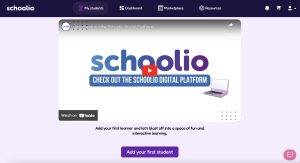
Adding a student to your account is much easier than you’d think. First, head to your account and sign in. Once you’ve signed in, you will be prompted to add your first student on the Schoolio Digital Platform.

Step 1: Add Your First Student 

How to Add a Student on the Schoolio Digital Platform

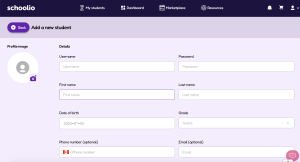
Add Student Details:

Once you have clicked the Add Your First Student Button, you will be taken to the student details page. You can go ahead and enter your student’s information here. Fill out the required fields: Student Username, Student’s Password, First Name, and Date of Birth. Then select your child’s school grade. (Don’t stress too much about this, as the courses are customizable. So, if your child is technically in grade 4 but needs a grade 3 level math, you can select that once you get to the courses.)

You can add the courses automatically or wait and add them later. Just to remind you, your student’s email and phone number are entirely optional. Now you can save your changes.

Step 2: Add Student Details

Student Details

Your Next Step is to Subscribe Your Student on the Schoolio Digital Platform.

You’re ready to go!

Now that you’ve completed all the steps for signing up, you can subscribe your student on the Schoolio Digital Platform to gain access to over 4,000+ videos and lessons.

Book a Concierge Call.

If you need help with how to get started or what programs would best suit your child’s learning needs, then you can chat with one of our experts on a one-on-one Concierge Call, completely free!
Click here to book a Concierge Call.

For more information on how to add a student on the Schoolio Digital Platform check out this video:

Now it’s time for your next step! Adding a course to your Digital Platform.

Click here for information to subscribe a student.